 Mapling
How do I move my Google Maps Timeline data to Mapling?
Export your Timeline data from the Google Maps app, then choose that file (location-history.json) under "Import Google Timeline" in Mapling's Settings, and your past stays appear on Mapling's map and timeline. Mapling reads the file on its servers and never connects to your Google account. You can check the names of your frequent places before importing, or import right away without checking.
What you need
- An iPhone with Mapling installed and signed in
- The Google Maps app (on the phone that holds your Timeline)
- The exported file: one exported from Google Maps on a phone (iPhone or Android), or a Timeline file you exported earlier with Google Takeout.
Steps
- Export your Timeline from Google MapsIn Google Maps, tap your profile picture and open your Timeline. From the menu at the top right, open Location & privacy settings. Under Timeline, tap Export Timeline data and choose Files as where to save it.Google's screens and their names may change. If you cannot find it, search Google Maps Help for "export Timeline data".
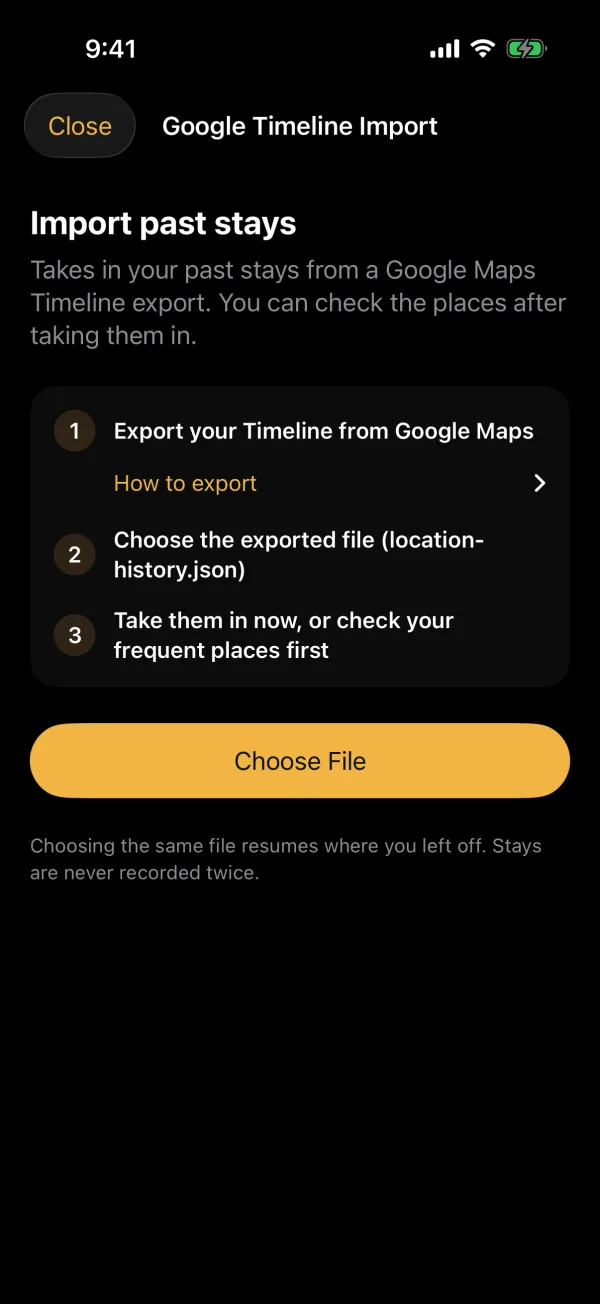
- Open the import screen in MaplingIn Settings, open "Import Google Timeline". If you have no history yet, you can also open it from "Import your past history" in the timeline's welcome card.
- Tap "Choose File" and choose the exported fileThe file is named location-history.json. Wait a moment while it is read (the screen shows "Analyzing file…").
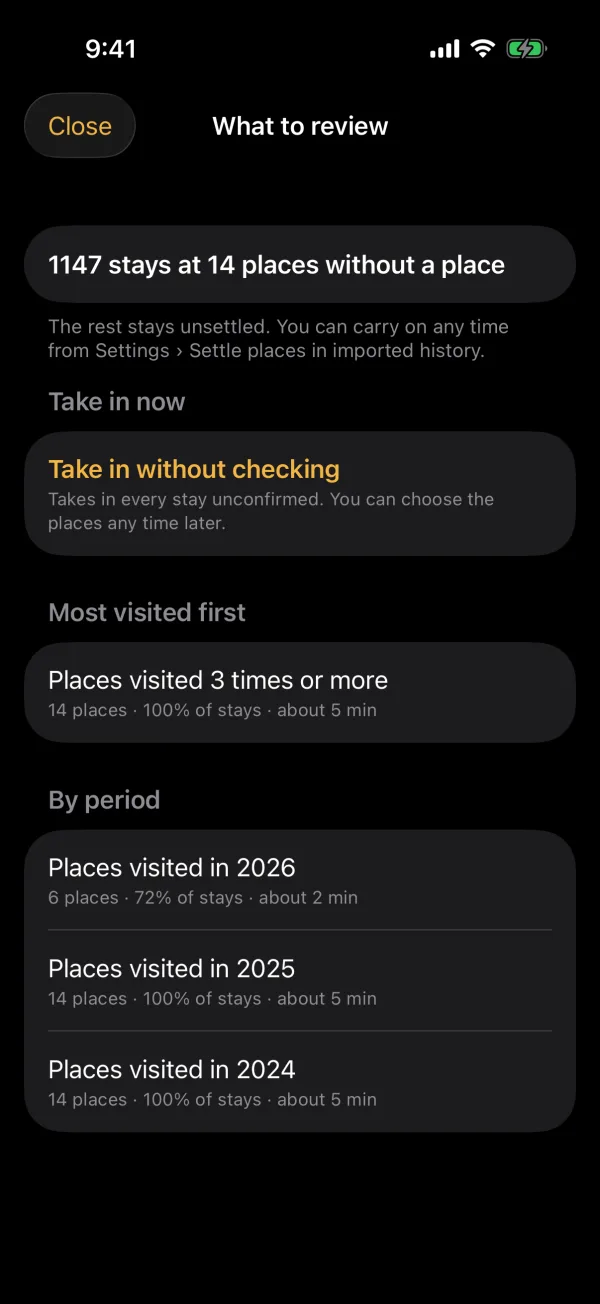
- Choose how to import"Take in without checking" imports every stay unconfirmed; you can choose the places any time later. To settle the names of your frequent places first, pick places by how often you went, by period or by area, and choose each place from its candidates before importing.
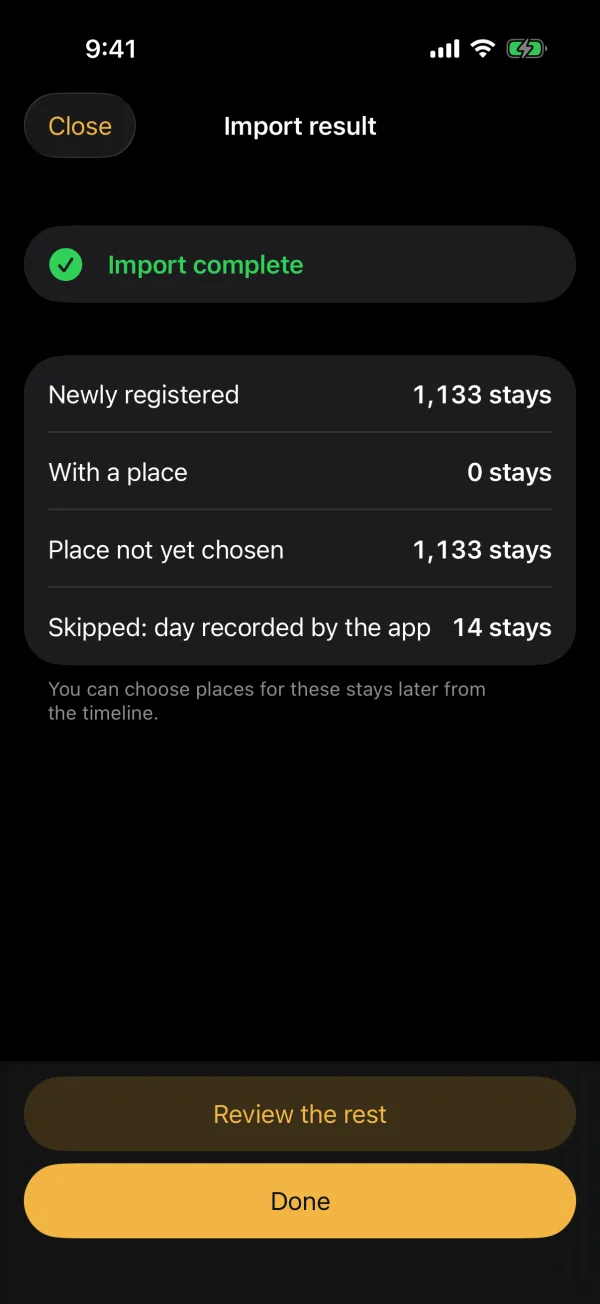
- Check the resultThe screen shows how many stays were newly added, how many of them have a place and how many are unconfirmed, and how many were skipped because they were already there. Imported stays appear on the map and on their day in the timeline.
After importing
- Stays imported unconfirmed can be settled one after another, most frequent places first, from "Settle places in imported history" in Settings, or from their row on that day's timeline.
- Stays with a place appear as pins on the map and in the Places tab.
- Imported stays are not counted in the number of unanswered stays on the app icon.
Good to know
- Stays shorter than 10 minutes are not importedThe same rule as the app's own recording.
- Days the app already recorded are not added twiceFor days after you started using Mapling, the app's own record stays.
- Choosing the same file again picks up where you left offNo stay is recorded twice.
- An unfinished review is kept for 7 daysYou can resume it until the date shown on the screen. After that it is deleted.
- Up to 50 MB per fileYou can choose one file at a time.
- Only Google Timeline exports can be importedFiles exported from Google Maps on a phone and older Google Takeout Timeline files (one file per month) work. A file of raw location points (Records.json) cannot be imported.
- The file you choose is sent to Mapling's servers to be readThe imported stays are kept as your history.
Questions
I cannot find the exported file
Check that you chose Files as where to save it when exporting. The file is named location-history.json; search for that name in the Files app.
After choosing the file, it said the file could not be read
Check that you chose the .json file itself, exported from Google's Timeline, and that it holds at least one stay. A file with no stays cannot be imported.
Do I need my Google account or password?
No. Mapling does not connect to Google; it reads only the file you choose.
Can I import any number of years?
There is no limit on the period. Any number of years can be imported, as long as the file is 50 MB or smaller.